
I’ll be honest with you: when I first started my website, the UX (user experience) wasn’t exactly my top priority. I was more focused on getting content up and making sure everything worked.
But, after realizing that people were bouncing off my site faster than I could say “conversion rate,” I knew I had to step up my game. That’s when I took a hard look at how to improve website user experience (UX), and trust me, it made all the difference.
Over time, I learned a few practical strategies and habits to optimize my site, and I want to share them with you. So, grab a cup of coffee, and let’s talk about how you can transform your website’s user experience into something your visitors will love (and stick around for).
Why Does Website User Experience (UX) Matter?

Let’s start with the basics. Why bother optimizing your site’s UX in the first place? Well, the short answer is: it impacts everything. From your bounce rates to how often users come back and even how well your content ranks on Google, UX plays a significant role in making your website a success.
But here’s the kicker: if your website isn’t easy to use, people won’t hesitate to leave and find something better. And let’s face it, there’s always something better just a click away.
How Can I Make Sure My Website Loads Fast?

A slow-loading website is one of the quickest ways to lose potential visitors. I had a rude awakening when I found out that a delay of even a second could make a huge impact on conversions.
Research shows that 40% of users abandon a website that takes longer than 3 seconds to load. So, if you want to improve your website user experience (UX), speed is a game-changer.
Steps I Took to Speed Things Up:
- Optimized Images: Large images were slowing me down, so I compressed them without compromising quality.
- Used Caching: This helped store some data for returning visitors, so they didn’t have to reload everything from scratch.
- Minified Code: Cutting out unnecessary characters from CSS and JavaScript reduced the file size and made everything load faster.
Speed may not seem like a big deal at first, but once I got the hang of it, I saw a massive difference in user engagement. When your site loads faster, users stay longer—and that’s the first step in creating a seamless UX.
How Can I Make My Site Mobile-Friendly?
I’ve said it before, and I’ll say it again: mobile is king. Whether you like it or not, more than half of your visitors will come from mobile devices. This means your site better look just as good on a phone as it does on a computer. So, how did I make sure my site was mobile-friendly?
The Magic of Responsive Design:
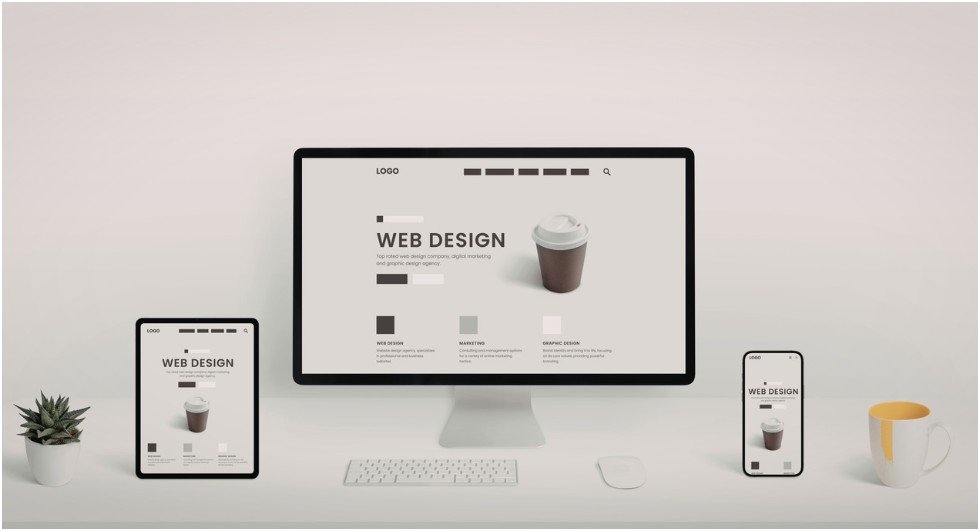
Responsive design automatically adjusts your website’s layout to fit any screen size, which is a must if you want to improve website user experience (UX). No one wants to zoom in and out on a page that wasn’t built for mobile.
I made sure my site’s design shifted smoothly between desktops, tablets, and mobile phones. There are plenty of tools out there (like Google’s Mobile-Friendly Test) that can help you see how well your site performs on mobile. If it’s not perfect, it’s time for some adjustments to create a responsive web design.
What Are Some Navigation Tips for Better UX?

I’ve learned that clear, simple navigation is everything. If people can’t find what they’re looking for quickly, they’ll leave your site and never come back. That’s why I focused on making the navigation as easy as possible.
My Go-To Navigation Tips:
- Keep It Simple: I limited my main menu to 5–7 essential links so users wouldn’t feel overwhelmed.
- Add a Search Bar: This helped visitors find specific content faster. People love the convenience of searching for what they need.
- Sticky Navigation: I implemented a sticky header so users could access the menu even as they scrolled down the page. It was a small change, but it made a huge impact on usability.
Navigation is one of those things you don’t always think about until it’s too late. Once I made these tweaks, the time users spent on my site went up, and I saw a drop in bounce rates.
How Do I Improve Accessibility on My Website?
I was surprised by how much I could do to make my site more accessible. I thought accessibility was only for people with disabilities, but it turns out that making your website accessible benefits everyone.
For example, high-contrast text is easier to read, and keyboard navigation makes it more convenient for users who can’t use a mouse.
Quick Accessibility Wins:
- Alt Text for Images: I added descriptive alt text to all my images so screen readers could properly identify them.
- Keyboard Shortcuts: I included support for keyboard navigation, especially for forms and buttons, so users don’t have to rely on a mouse.
- Accessible Fonts: I chose easy-to-read fonts with sufficient size and contrast for everyone to enjoy.
Making these changes not only helped people with disabilities, but it also gave my site a polished, professional look that helped my visitors feel more comfortable and confident.
How to Improve Website User Experience (UX): A Step-by-Step Guide
Alright, now that we’ve covered some major UX improvements, here’s a practical, step-by-step guide to get you started on improving your site’s experience:
Step 1: Audit Your Site’s Speed and Performance
- Use tools like Google PageSpeed Insights to measure your load time.
- Identify and fix bottlenecks (like large images or unoptimized code).
- Aim for a load time of under 3 seconds.
Step 2: Ensure Mobile Compatibility
- Use responsive design to make sure your site looks great on any device.
- Test your site using Google’s Mobile-Friendly Test.
- Optimize your images and layout for smaller screens.
Step 3: Simplify Your Navigation
- Keep your menu simple and organized with key categories.
- Add a search bar for easy access to content.
- Use sticky navigation so users can access the menu at any time.
Step 4: Improve Accessibility
- Add alt text for all images to assist visually impaired users.
- Enable keyboard navigation for better site usability.
- Choose easy-to-read fonts with high contrast for readability.
FAQ: How to Improve Website User Experience (UX)
Q1: What’s the most important aspect of UX to focus on first?
The most critical factor is site speed. If your site is slow, users won’t stick around long enough to enjoy the rest of your content. Focus on optimizing images, minifying code, and using caching to boost performance.
Q2: How do I ensure my website is user-friendly?
A user-friendly website is all about intuitive design. Make your navigation simple, use clear calls to action, and ensure users can easily find what they’re looking for. Testing and gathering feedback from users will also help you refine the experience.
Q3: Is mobile-first design important for SEO?
Yes! Google now uses mobile-first indexing, meaning it prioritizes mobile versions of your site for ranking. A mobile-friendly site will not only provide a better UX but will also help your SEO rankings.
Q4: How do I test if my website’s UX is working?
You can use tools like Google Analytics, heatmaps, and user surveys to measure engagement, bounce rates, and conversion rates. Regular user testing and feedback will help you understand where you can improve.
UX Excellence: A Work in Progress
Improving your website’s user experience is not a one-time fix, but a continuous process. After all, UX is all about evolution — testing, improving, and keeping up with what your users need.
By focusing on speed, mobile optimization, navigation, and accessibility, you’re already on the right track. Keep fine-tuning your site, listen to your users, and watch your website grow into the user-friendly space it was meant to be.
My tip? Start with the small, manageable changes. Then, as you get more confident, tackle the bigger projects. Your users (and your traffic) will thank you!